Quick Answer
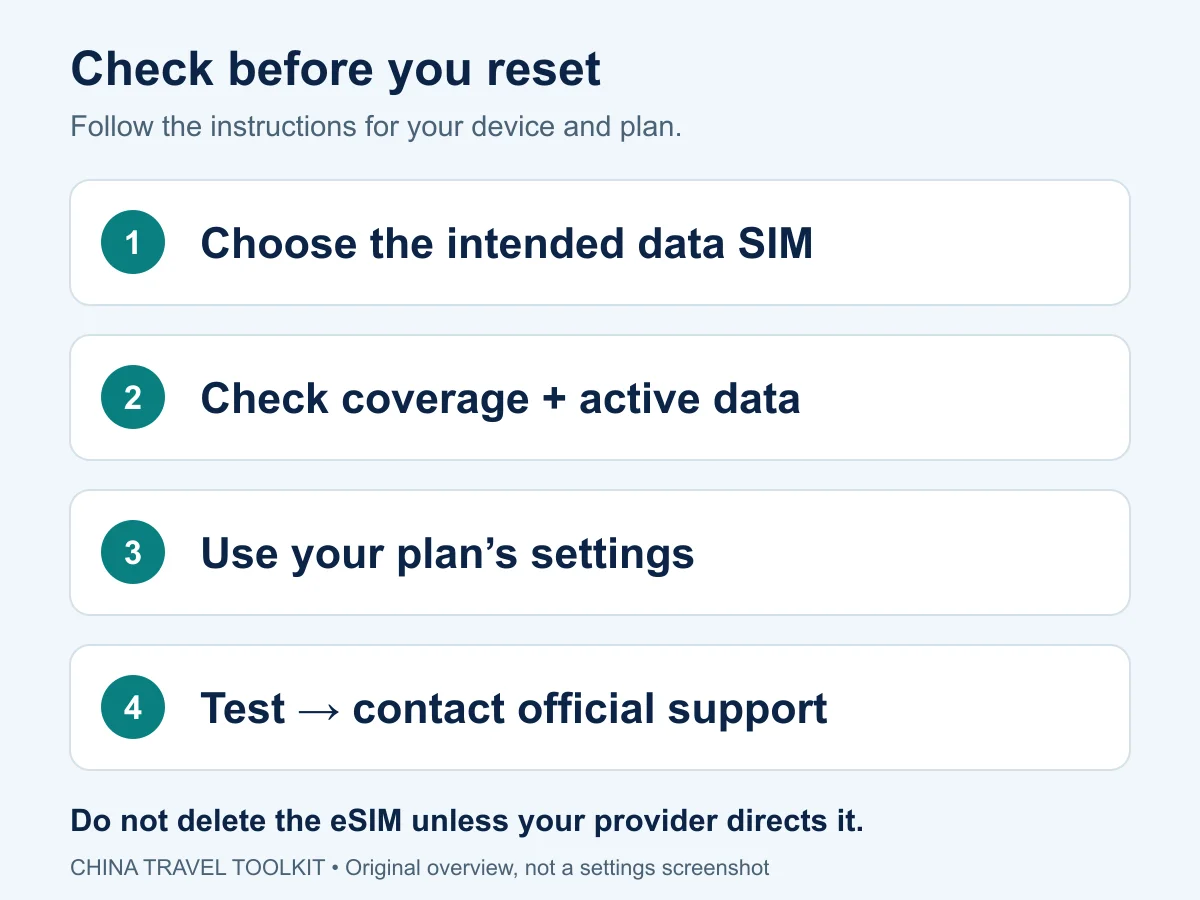
Check that your intended SIM is enabled and selected for mobile data, then confirm mainland China coverage, remaining data, and activation status. Follow that specific plan’s roaming instructions. Do not delete the eSIM. First distinguish no signal, no data, and an app that will not open.
This guide is for travelers already in mainland China who have a mobile plan but cannot use it. It is based on official device and provider guidance, not a personally tested airport recovery.
First, Identify What Is Failing
Look at the status of the line you intend to use—not just the signal bars for your other SIM.
- No Service or Searching: start with the line and network checks below. On iPhone, these messages mean the device is not connected to a cellular network.
- Signal is present, but nothing loads: check the selected data line, plan status, roaming requirements, and provider settings.
- Some pages work, but one app does not: do not treat that alone as a failed SIM. The app, account, service, or connection’s access limitations may be involved.
Apple explains the first case in its No Service troubleshooting guide. None of these symptoms alone identifies the provider’s exact fault.
Check the Plan Before Changing Settings
Open your purchased package’s instructions using an available connection or a saved copy. Confirm:
- It covers mainland China, not just another destination on your itinerary.
- It still has usable data and has not expired.
- Any required activation step is complete.
- The installed line corresponds to that package.
Installation does not necessarily mean the data allowance has started—or that it is working. For example, Airalo documents different activation policies across its packages. Check the policy for your purchased eSIM, rather than assuming installation always starts validity.
If the eSIM profile will not install at all, start with our pre-departure eSIM installation checks; the steps below assume a line is already present on the phone.
For home-carrier roaming, check China eligibility and charges with your home carrier. A travel-eSIM setup guide is not evidence that your home plan includes overseas data.
Select the Correct Data Line
On iPhone
Open Settings → Cellular or Mobile Data, then select Cellular Data and choose the intended travel line. Confirm that line is turned on. Apple says an iPhone uses one cellular-data number at a time.
Check whether Allow Cellular Data Switching is enabled. For a controlled test, keep data on the intended line rather than allowing an unexpected switch. If a call is active on your other line, end it before testing again: with switching off, that call can interrupt data. See Apple’s Dual SIM instructions.
On Google Pixel
Open Settings → Network & internet → SIMs. Check Mobile data and the data preference under Your primary SIMs. Google documents one default data SIM at a time. See Pixel’s Dual SIM guidance.
These are Pixel instructions, not universal Android menus. On another brand, use its current device instructions. If a setting does not clearly identify the affected SIM, check before changing it.
Follow Your Plan’s Roaming Instructions
Do not switch on roaming for every line as a general fix. The required setting depends on the connection you purchased.
For example, Airalo’s New Airalo setup guidance requires roaming for that service. Its older eSIM packages have their own connection instructions. Neither is a universal rule for other providers or your home SIM.
Keeping your home number available and choosing it for roaming data are different decisions. Check the home carrier’s charges before using it as a fallback; do not assume calls or messages are free either.
Test Mobile Data, Not Wi-Fi
Briefly turn Wi-Fi off and request fresh content in more than one app or website expected to work at your location. Restore Wi-Fi if you need it for instructions or support. A cached page is not a useful test of a new connection.
Do not use Google alone to decide whether the SIM works. The UK government’s China travel advice notes that some international services are blocked. A working page shows some connectivity; it does not prove every service is reachable. One failed app also does not prove a restriction.
For the wider distinction between connection types and access limitations, see our China internet-access guide.
If There Is Still No Signal or Data
For No Service or Searching on iPhone, Apple recommends turning Airplane Mode on for at least 15 seconds, then off. A restart is another documented check. If that does not help, ask the carrier or eSIM provider to check account provisioning, coverage, and outages.
For signal without data, revisit the package allowance and connection instructions. If they require an APN, enter only the exact supplied value. Airalo notes that some packages configure the APN automatically. There is no universal “China APN” to copy from an unrelated tutorial.
On iPhone, the carrier may hide APN editing. A missing menu is not itself a defect. Apple warns against changing APNs without carrier guidance. Similarly, only try manual network selection when your provider identifies a supported network for your package.
Stop Before Making Recovery Harder
Do not delete the eSIM, factory-reset the phone, or install an unknown configuration profile as routine troubleshooting. Apple specifically says not to erase an eSIM unless the carrier directs you. Reinstallation rules differ; do not assume either that every eSIM is reusable or that none can be reinstalled.
Contact the provider with your location, phone model and OS, package name, visible error, selected network, and checks already attempted. Share order details only through its official private support channel, not in public comments. Ask it to verify the package and local partner-network status before making disruptive changes.
If You Need to Leave the Airport Now
Ask staff about the venue’s current Wi-Fi access or official connectivity assistance; do not assume a particular login method or SIM counter is available. Use another prearranged connection only after checking its charges.
If recovery must wait, show airport or transport staff your saved hotel name and Chinese address if you need help getting there. Keep the full booking confirmation secure and show it to hotel reception only when needed for check-in. Our first 72 hours guide explains what to keep available offline. Once connected, the Internet Setup Finder can help plan a backup; it does not diagnose or repair the SIM.

Sources and Review Date
Official documentation linked above was checked on October 10, 2026. Menu names, package rules, and support procedures can change. This is an editorial synthesis of official guidance, not a carrier guarantee, device compatibility certification, or firsthand field test.